
Frequently Asked Questions
Do you want to know more about Advanced Driver Updater? Find the answers to the most commonly asked questions.

Frequently Asked Questions
Find a reply to your frequently asked questions.
 What is the difference between the trial and the registered version of Advanced Driver Updater?
How to register Advanced Driver Updater software?
- Launch Advanced Driver Updater.
- Click on the Register Now option in the top right corner of the program screen.
- In the new window that opens, copy and paste your email ID and license key you received in the respective fields.
- Click on the Register Now button to complete the registration process.


How to update outdated PC drivers?
- Run Advanced Driver Updater.
- Click the Start Scan Now button to identify outdated drivers.
- Once the scan is finished, you will get a list of outdated drivers. Review the list and update corrupt, missing, or incompatible drivers.
- If you are a registered user, click the Update All button to update all detected outdated drivers at once. However, if you are using the trial version to test how the tool works, click ''Update'' next to the driver you wish to update.
Note - Trial version users can update only one driver at a time.
- Wait for the process to finish, then restart the system to save the changes.
What are the advantages of using Advanced Driver Updater?
- Helps keep hardware drivers up to date.
- In a single click, it scans the PC for outdated, missing, or corrupt drivers and updates them.
- Updates WHQL-certified drivers.
- Improves speed and stability by updating drivers, and helps resolve common hardware issues, including sound glitches, display problems, and network errors.
- You can back up and restore drivers.
- Schedule scanning for updating drivers.
- Compatible with Windows 11, 10, 8.1, 8, and 7
Advanced Driver Updater shows some outdated drivers, but does not update them.
To update outdated drivers, purchase a license key, register the program, and update to the latest drivers.
How to take a full backup of the existing system drivers?
- Launch Advanced Driver Updater.
- Click Backup tab.
- Select the option Create a complete backup of all system drivers.
- Wait for the backup to complete.

How to restore the backup of the previous drivers?
To restore the driver backup taken by Advanced Driver Updater, follow these steps:
- Launch Advanced Driver Updater.
- Click on the Restore tab.
- Select the backup of the respective date and click on the Load Backup button.
- Now, check the device driver you wish to restore and click on the Restore button.


How to add incompatible drivers to the exclusion list?
- Launch Advanced Driver Updater.
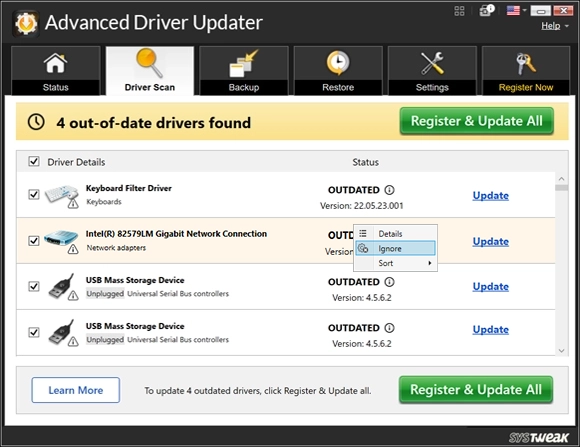
- Run the scan by clicking the ''Start Scan Now'' button.
- Right-click on the driver you want to exclude and click Ignore.
- This will add the driver to the exclusion list, and it will not be shown in the following scan.
Not able to update the drivers. get the error message ''Check your internet connection,'' even though the internet is working fine.
Does Advanced Driver Updater support Windows 11 23H2?
How do I prevent Advanced Driver Updater from launching with Windows and automatically running scans?
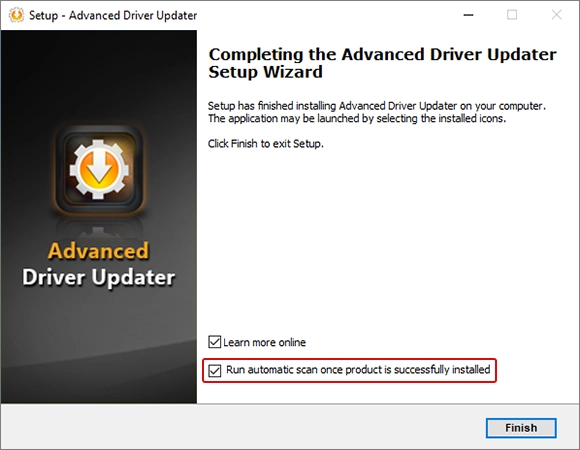
To stop Advanced Driver Updater from running a scan after installation, uncheck the option "Run automatic scan once product is successfully installed", which you see at the final installation screen.
What makes Advanced Driver Updater a trusted and safe driver updater to use?
How to disable Advanced Driver Updater from launching at startup and running a scan?
To disable Advanced Driver Updater from launching at startup, please follow the steps below:
- Launch Advanced Driver Updater.
- Click on the Settings > General tab and uncheck the setting "Launch at Windows startup and start a driver scan".
- Click on the Apply button to save the settings.

This will disable the program from launching at Windows startup.
One of my devices stopped working after updating drivers.
To fix the issue, roll back the driver update. To do so, follow these steps:
- Launch Advanced Driver Updater.
- Click the Restore tab.
- Select the backup of the respective date and click on the Load Backup button.
- Now, check the device driver you wish to restore and click on the Restore button.

Write to us!
If you are facing any issue while using the product, please feel free to email us at support@systweak.com, our support team will get back to you at the earliest.